Exporting Submissions
Download a file of a form's responses (CSV, Excel, or JSON) or a codebook that describes the form's questions without any response data. The export panel opens from the Submissions grid and starts with that grid's filters already filled in. On a wide screen it slides in from the side; on a narrow screen it opens from the bottom.
Some workspaces still show Export Submissions as a dropdown listing CSV, Excel, and a fixed set of formats an administrator configured directly on the API. This article covers the panel described below, which workspaces move to over time. Either way you pick a format, optionally narrow the rows, and download a file.
Export a Format
- Open the form's Submissions page.
- Filter the grid if you already know which rows you want. Those filters are copied into the panel.
- Click Export Submissions above the grid.
Prepare (First Export of a Form)
The first time anyone exports a given form, Endatix compiles that form's questions into an export-friendly structure and loads its existing submissions into it.
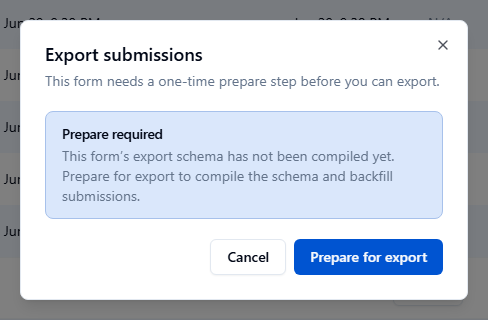
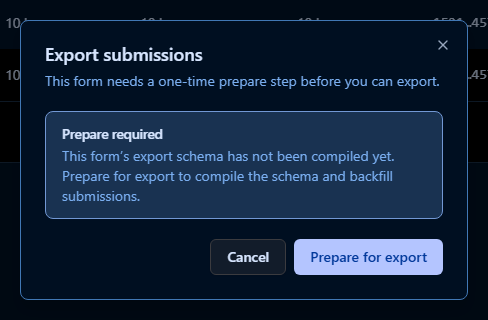
Click Prepare for export. This runs once per form. Later exports, including other people's, skip straight to the format picker. Preparing does not change any submission. It only builds the export structure. Anyone who can export submissions can prepare a form.
Choose a Format and Filters
Once the form is prepared, the panel shows the export format and, for row-based formats, which submissions to include:
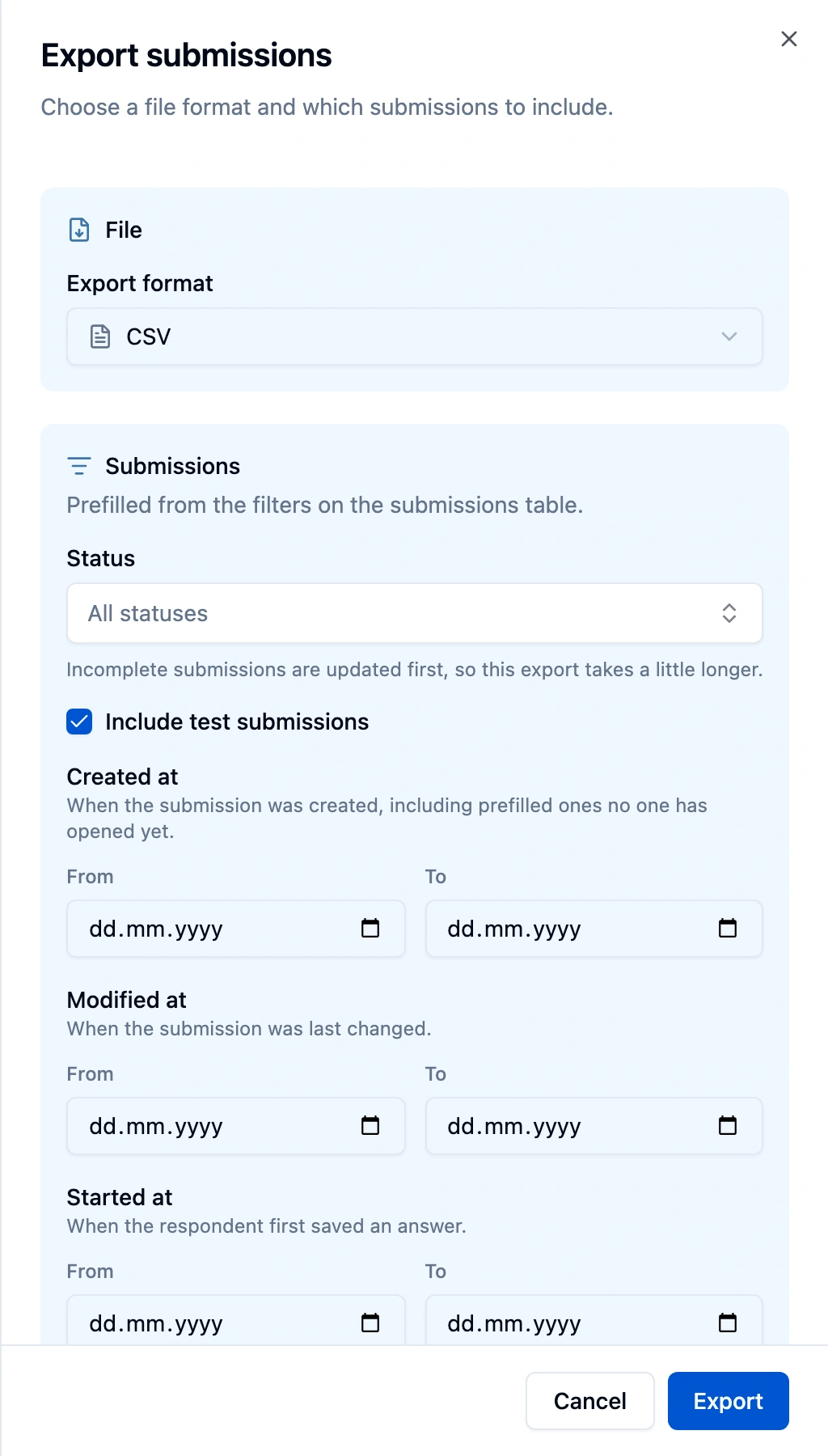
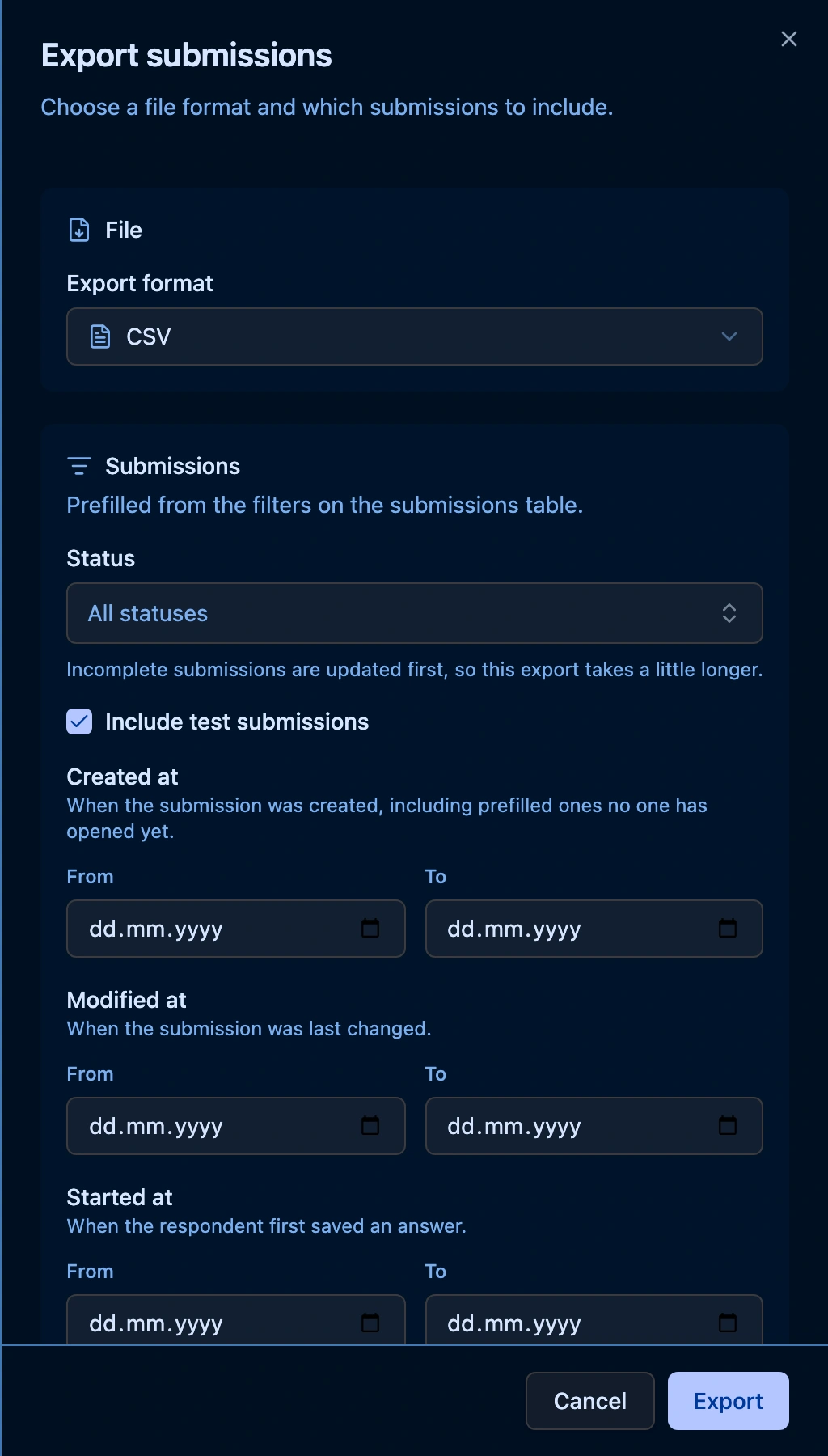
The Submissions section says it is prefilled from the filters on the submissions table. Change any field before you download; that change applies to this export only and does not change the grid.
| Field | What it does |
|---|---|
| Export format | Which of the workspace's configured formats to download. Grouped by Submissions (response data) and Codebook (metadata only) when both exist. See Where Formats Come From. |
| Status | Which collection statuses to include, such as Complete, Not started, Viewed (opened, with no answer yet), In progress, or Screened out. Select one or more; no selection reads All statuses. Copied from the grid's Status filter. Any status other than Complete includes drafts: the panel says Incomplete submissions are updated first, so this export takes a little longer. It updates those drafts in the export structure before the download. A draft can still change after the file is downloaded. Deleted submissions are not included. |
| Include test submissions | Copied from the grid's Submission Type filter. It is off when the grid shows production submissions only. It is on when the grid has no type filter, shows tests only, or shows both. See Submission Type. |
| Created at, Modified at, Started at, Completed at | Optional date ranges, copied from the matching grid filters. Created at is when the submission was created, including prefilled ones nobody has opened. Modified at is when it was last changed. Started at is when the respondent first opened the form (for submissions saved before this was recorded, when they first saved an answer). Completed at is when they submitted the form, and it only appears when Status includes Complete or is All statuses. |
Press Export, or Enter, to download the file. While drafts are being updated, the button reads Updating submissions….
Codebook Formats Skip the Filters
Select a Codebook format and the row filters disappear. A codebook describes the form's questions, so submission filters do not apply:
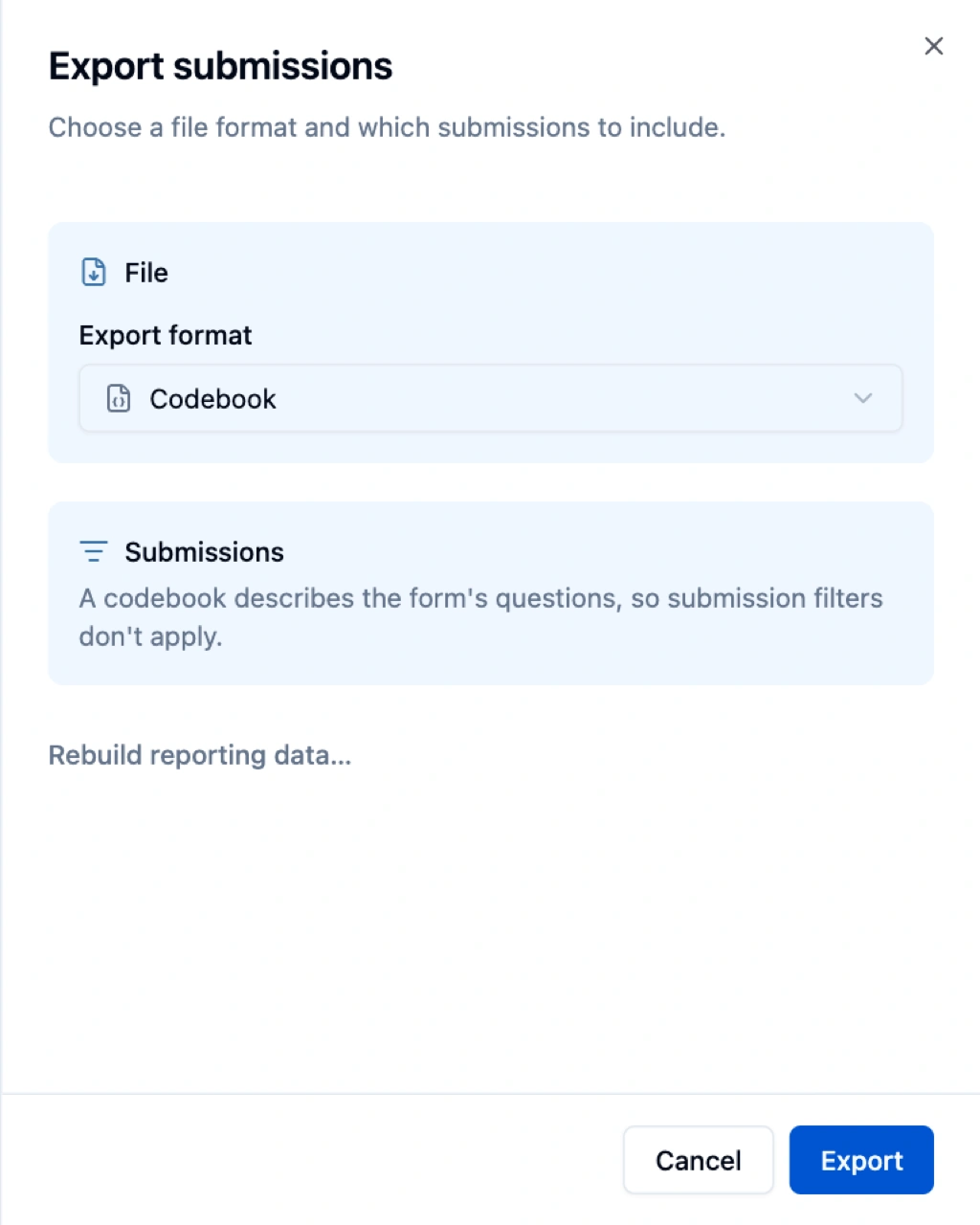
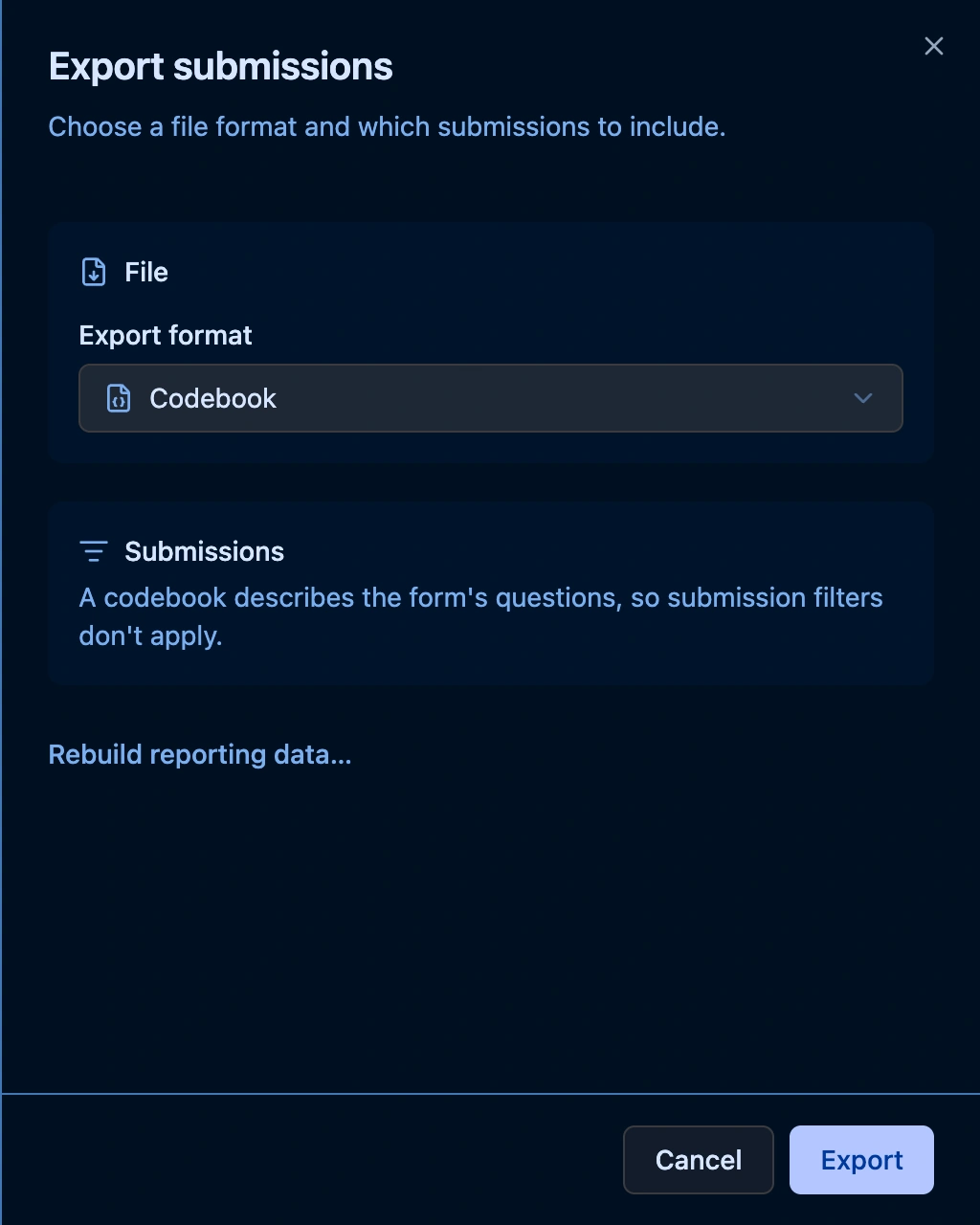
A codebook lists every question, its type, and its choice values and labels: the metadata a statistics package (SPSS, R, or Crunch.io) needs to make sense of a separate data file's column headers and coded values. Some codebook formats also ask for a language, used for question and choice labels.
Rebuild Reporting Data
Once a form is prepared, Rebuild reporting data… appears at the bottom of the panel for users with permission to edit the form. Use it if the form's questions changed after you prepared it and an export is missing new columns, or an export failed and you want to retry the load. Full recompile replaces the export structure from the form's current questions instead of extending it. Use it only if the structure looks wrong, since it discards the history of removed or renamed questions.
Updating drafts when you export Incomplete or All is separate from rebuild. That step only refreshes the drafts in this download. It does not recompile the form.
If a conflict stops the rebuild because an existing export column would change meaning, the panel tells you whether the previous schema was kept. Use Copy support reference to share the failed attempt with support.
When the previous schema was kept, choose your format and filters, then select Check previous export. Download using previous schema appears only after the Hub receives the complete file for that exact selection. The file uses the previous schema, so recent changes may be missing. Check again if you change the selection or reopen the panel. An unfinished rebuild or a Full recompile that already replaced the schema does not prove a previous file is available.
Where Formats Come From
The formats listed in Export format are configured per workspace at Settings → Organization → Export formats, by someone with permission to manage organization settings:
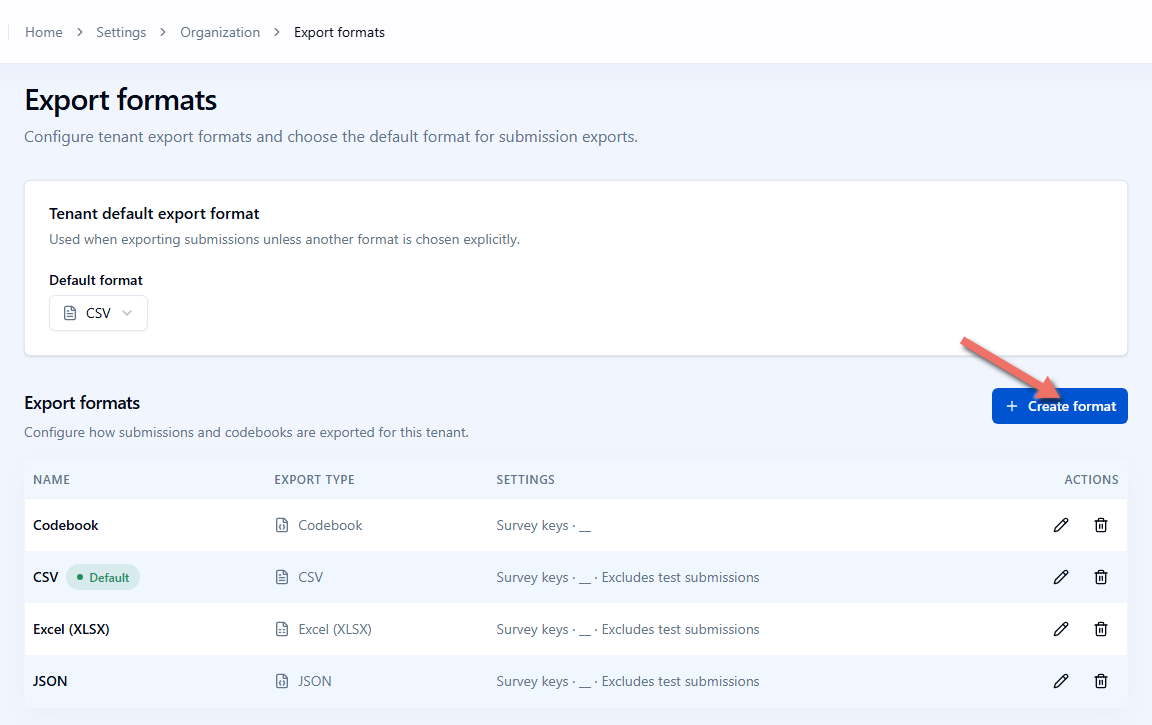
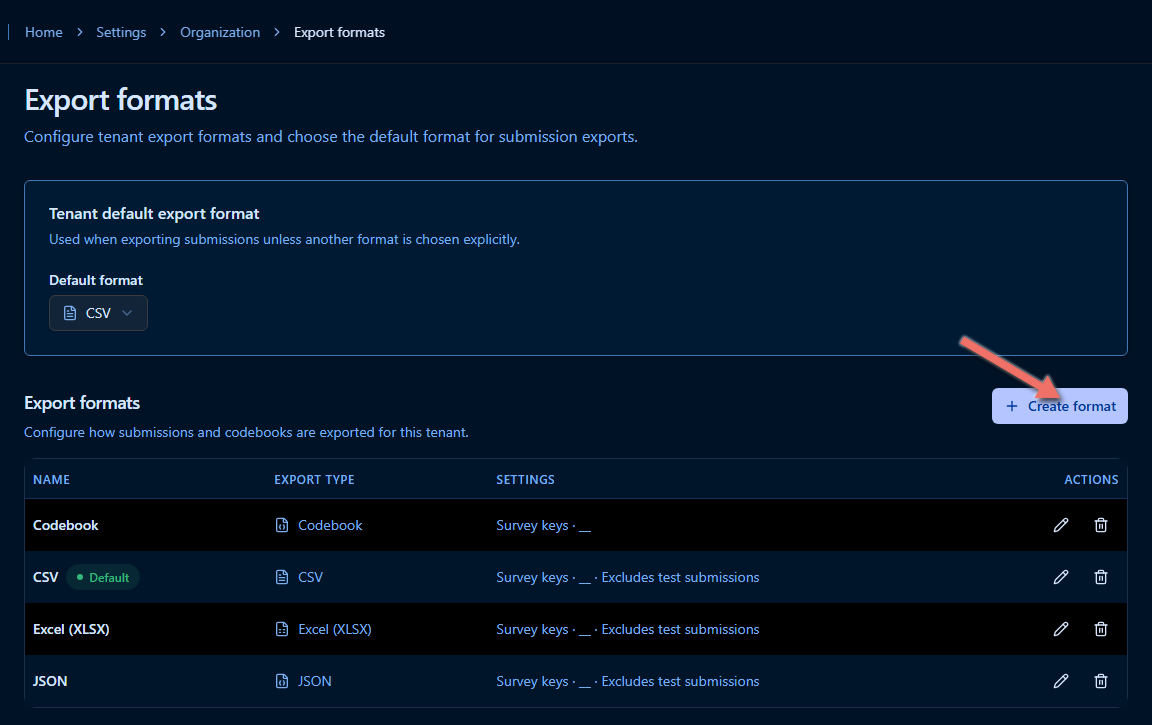
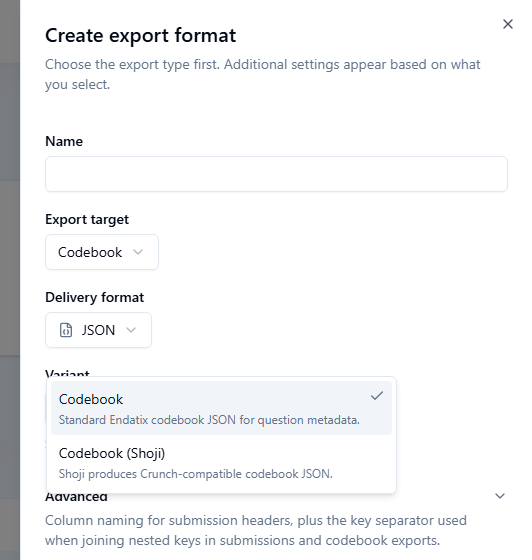
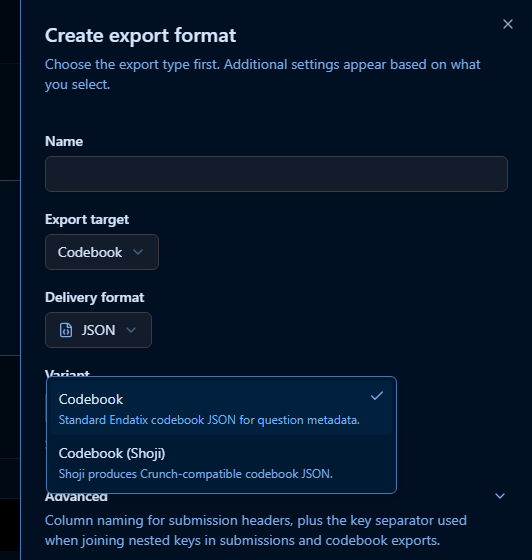
Every new workspace starts with four formats, CSV (the tenant default), Excel (XLSX), JSON, and Codebook, which cover the common cases. An administrator can add more: for example, a Codebook (Shoji) format, shown here mid-creation, produces a codebook in the variant Crunch.io expects instead of Endatix's own default shape:
Crunch.io Folders
When you import a Codebook (Shoji) file into Crunch.io with its CSV, Crunch shows the variables in folders:
| Folder | What it holds |
|---|---|
| Meta-data | The submission's system fields, such as its ID, status, and timestamps |
| Participant variables | The participant identifier and the participant's values, on a personalized form |
| Submitter | The submitter fields your workspace captures |
| Calculated values | The form's calculated values |
| Questions | The questions, in survey order. A panel or a loop becomes a sub-folder named by its title, nested as the panels are in the form |
A folder with nothing in it is left out. If two panels at the same level have the same title, the second folder gets a number, such as Details (2). Form ID is the same in every row, so it goes under Crunch's hidden variables instead of a folder.
If a form was prepared before this layout existed, its panels become folders named by their titles but do not nest. Rebuild reporting data… brings the nesting back.
The Shoji codebook requests an hours-and-minutes display (2026-10-01 10:00) and hourly grouping for timestamps such as Created At. For date-only answers it requests just the date (2026-10-01).
The codebook groups a ranking into one question with a row for each choice. If another CSV column already uses the ranking's alias (for example, a calculated value named rank), the codebook keeps a separate numeric variable for each choice so the other column can still be imported. In both cases the CSV has one column per choice.
Participant Columns
On a personalized form, every export ends each row with the participant's values: CSV, Excel, JSON, and the Crunch.io CSV. The first of these columns is ParticipantIdentifier, labeled Participant identifier, and each property follows as participant_<variable>, such as participant_city. Both codebooks describe the same columns. The Endatix codebook lists them in a participants block titled Participants, and marks each one with the type participant. The Shoji codebook puts them in the Participant variables folder.
If a question's column key is the same as a participant column's, the question keeps the key and the participant column is left out.
In Crunch, a participant variable is labeled “Original value at survey start.” For a directly prefilled question, look in its description: the source appears after the question title, followed by any description the form author wrote. For example, a city question prefilled from city points to participant_city, so you can compare the original value with the submitted answer. The Endatix codebook records prefilledFrom: "city" on the question. Using a variable in a condition, in question text, or as part of a calculation does not mark the question as prefilled.
If a form was already prepared for export and its codebook is missing the prefill source, select Rebuild reporting data…, leave Full recompile off, then download the codebook again. If the form has at least one non-test submission, the rebuild keeps the export columns for removed or renamed questions. If the form has only test submissions or no submissions, the rebuild can replace the export structure with the current questions, even with Full recompile off.
Endatix 0.9.0, and pre-release (canary) builds from 0.8.1-canary.11, named these columns AudienceIdentifier and audience_<variable>, and called the codebook block and each column's type personalization. A form prepared on one of those builds keeps the old columns until you run Rebuild reporting data… with Full recompile (see Upgrade to Endatix 0.9.1). Afterwards its exports show only the participant columns. If a Crunch.io dataset was loaded from such an export, alias its variables to the new names.
Each format also has Column naming and a key separator (under Advanced) that control how nested question keys (a choice within a multi-select question, for example) are joined into one column header, such as question__choice. As a regular user exporting submissions, you don't need to touch any of this. It's here so you know who to ask if a format you need isn't in the list, or if you're the one setting up a new workspace.
Exporting a Single Submission as PDF
Export format downloads many submissions at once. To export exactly one submission, open it and use Export PDF in its own top bar:


See Submission Details for what Export PDF includes and how it chooses a language.
To hand that PDF to someone who has no Hub account, generate an Export PDF share link instead: Sharing Submissions.
None, Refuse to Answer, Don't Know, and Other
A choice question can show special items next to its own choices: None, Refuse to answer, Don't know, and Other. Every export format writes them the same way:
- Multi-select (checkbox, tag box): each special item gets its own column after the question's choices, such as
question__none,question__refused, andquestion__dontknow, set to 1 when chosen and 0 when not, like any other choice. Select All has no column: it only ticks the other choices. - Single-select (radio group, dropdown): the column holds the stored value,
none,refused,dontknow, orother. - Inside a dynamic panel without a loop source, or in a data-list multi-select: the answer stays in its single column as stored, so a special item appears as its value, such as
none. - Other: the text the respondent typed goes in the
question__other_textcolumn, whether the form keeps that text in a separate comment or in the answer itself.
In a codebook, special items are listed after the question's choices and Other. In a Codebook (Shoji) file for Crunch.io, a single-select question's Refuse to answer and Don't know are missing categories, so Crunch leaves them out of percentages; None counts as an answer. In a multi-select question they are selected or not selected, like its other choices.
A form prepared before these items were exported needs Rebuild reporting data… once to add their columns.
For the exact columns, values, and Crunch.io categories in each format, see Special Answers in Exports.
Empty Cells
Each choice of a checkbox or tag box has its own column:
- 1: the respondent picked the choice.
- 0: the respondent was shown the choice and did not pick it.
- Empty: the respondent was not shown the choice, or the export cannot tell.
Empty cells appear in these cases. The full rules, including every case where the export cannot tell, are in Special Answers in Exports.
- Conditional choices: a choice with a visibility condition is 1 if picked and empty otherwise, even on an answered question. The export uses the form version the respondent answered, so removing a condition later does not turn an earlier empty cell into 0.
- Unanswered questions (Endatix 0.9.3): an unanswered checkbox or tag box writes 0 only in a completed submission where nothing could hide the question. Otherwise every column is empty: an incomplete submission, a question that a visibility condition could hide, or a form version that did not have the question.
- Copied choices: a question that copies its choices from another question (Carry Forward, or SurveyJS Choices from question) writes 0 only for a choice the respondent was shown, worked out from the source questions' answers in the same submission. When those answers cannot tell, for example with a Max choices limit or a source question with no answer, unpicked choices are empty. An unanswered copy is empty in every column.
- Loops: in a loop item the respondent did not have, for example a brand not picked in the question the loop repeats over, every column is empty.
- Rankings: an unanswered ranking is empty in every column. An answered ranking writes each choice's rank, and 0 for a choice left unranked. A ranking that copies its choices leaves an unranked choice empty instead.
A 0 can still appear for a choice the respondent did not see in two cases: a question after the point where a trigger completed the survey, and a checkbox moved into or out of a loop in a later form version, for submissions saved where their version did not have it (#1770).
A Codebook (Shoji) file is unchanged: Crunch.io imports an empty cell as No Data.
Older submissions keep their stored 0s. Rows saved before Endatix 0.9.2 or 0.9.3 change only when an administrator with forms.edit refreshes them. A Hub rebuild without Full recompile, and the draft refresh before an Incomplete or All download, both skip unchanged submissions: to merge the schema and force a backfill, use the API. See Copied choices export empty cells for 0.9.2 and Refresh stored rows for 0.9.3.
Important Considerations
- Prepare is per form, not per user. Once anyone prepares a form for export, every user exporting that form skips the prepare step.
- The panel starts from the grid. Status, test submissions, and the four date ranges are copied from the filters already on the Submissions page. Clear a grid filter before you open the panel if you do not want it in the file.
- The export panel refreshes drafts before an Incomplete or All download. Completed exports use the submissions already prepared. A draft that changes after you download the file is not in that file. Deleted submissions are never included. If only some drafts can be updated in one export, the file still downloads and the panel says so.
- A codebook has no rows to filter. Status, test-submission, and date filters apply only to Submissions formats.
- Merge preserves Crunch.io category IDs. A merge keeps existing IDs when choices change. Full recompile assigns IDs in current choice order, so a choice can get a different ID. A form that removed a choice before this rule existed has its later choices renumbered once, in its next Shoji export.
- Rebuilding needs permission to edit the form. Without it, Rebuild reporting data… is not shown. Ask someone who can edit the form if an export is missing new columns.
- Full recompile discards export history. It rebuilds the export structure from the form's current questions only. A question that was removed or renamed loses its column history in future exports.
A checkbox or multi-select whose choices are written on the form becomes one column per choice. A Multi-Select Dropdown backed by a data list has no choices on the form, so the selected ids stay in a single column and are not replaced with labels. If the form was already prepared, use Rebuild reporting data… once so that column is added.
lazyLoadedQuestion
"val1, val2, val3"